
WeChat Official Account
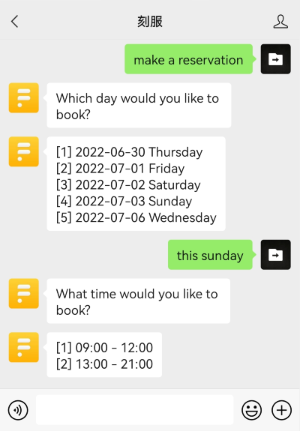
A WeChat Official Account exists in the form of a Wechat user's contact and chat is the basis for the interaction between the Official Account and its users.
We are going to show here how to integrate OpenCUI with WeChat and deploy the chatbot to a OpenCUI hosted environment. For the private deployment, please consult systems in your organization.
Follow these steps to configure:
Before you begin
If you don't have WeChat Official Account, set up one first.
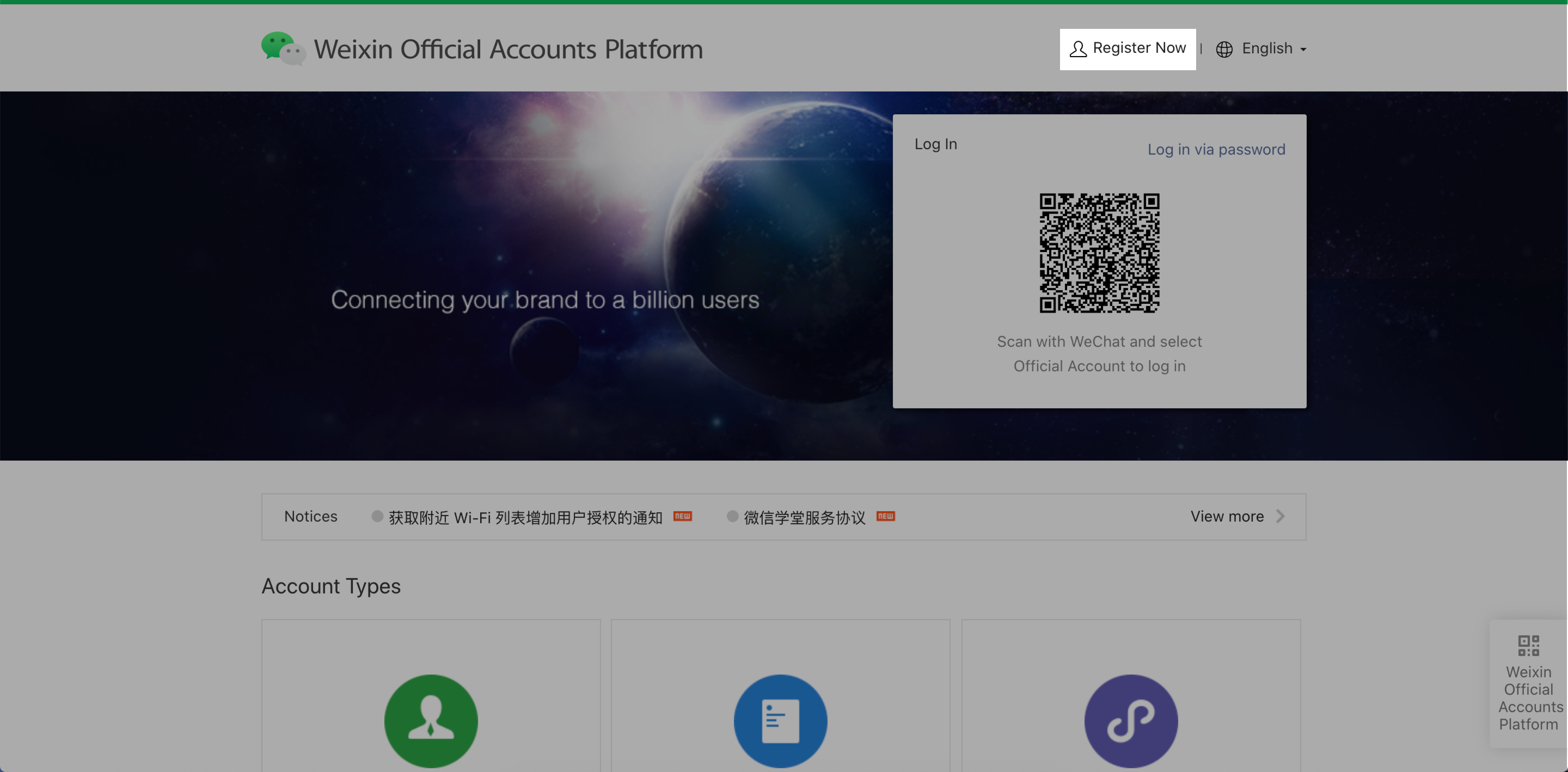
- Go to WeChat Official Account Platform, click Register Now
- Select Service Account or Subscription Account, and follow the instructions that are provided on the screen to complete the process.
Set up WeChat Official Account
- Go to WeChat Official Account Platform and log in with your WeChat Official Account.
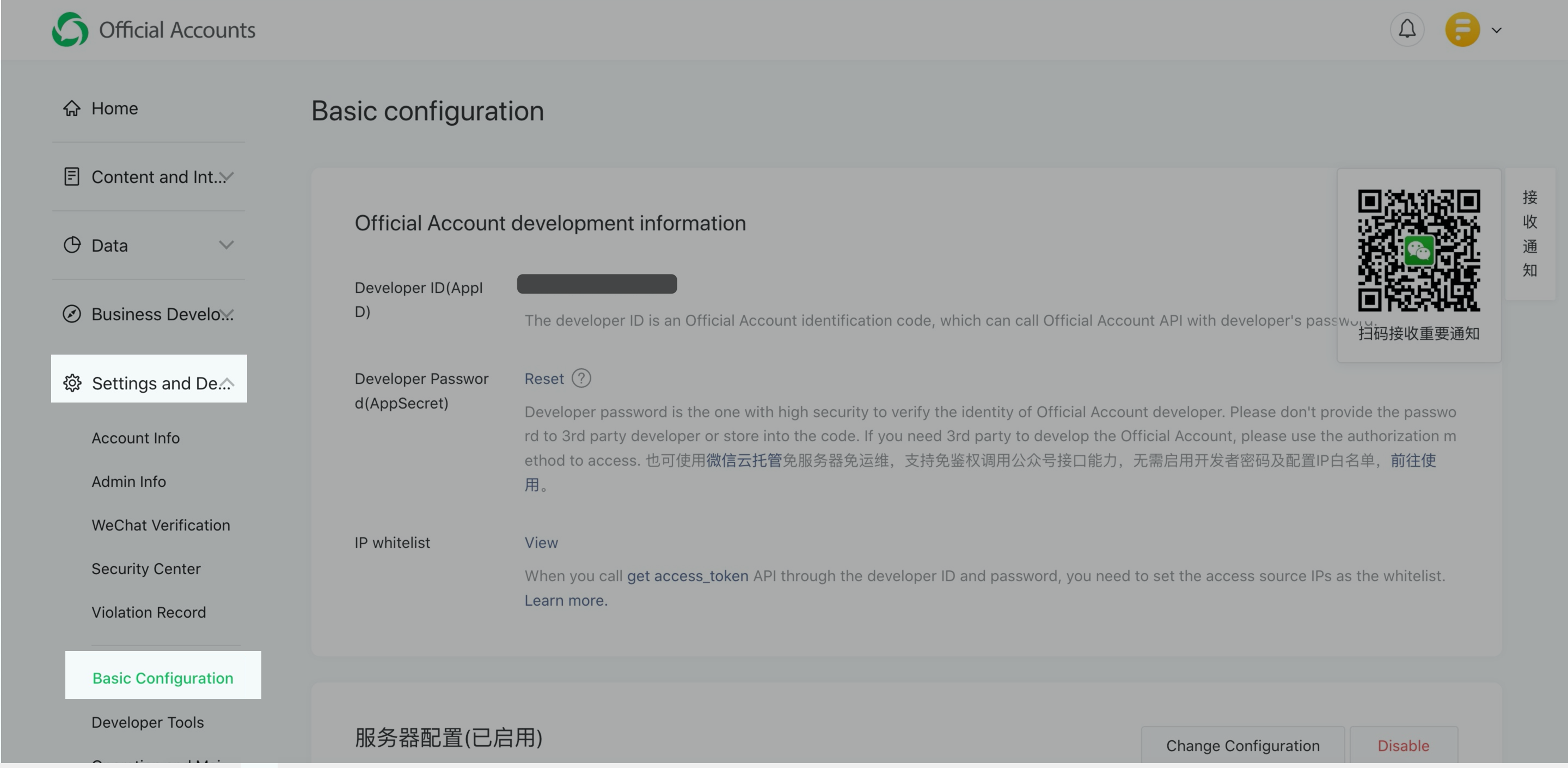
- In the Setting and Development field, click Basic configuration.
- In the Official Account development information field, 📋 copy Developer ID(AppID) and Developer Password(AppSecret)
Notice
If you used Developer Password(AppSecret) before but didn't store it, you can click Reset to get a new one.
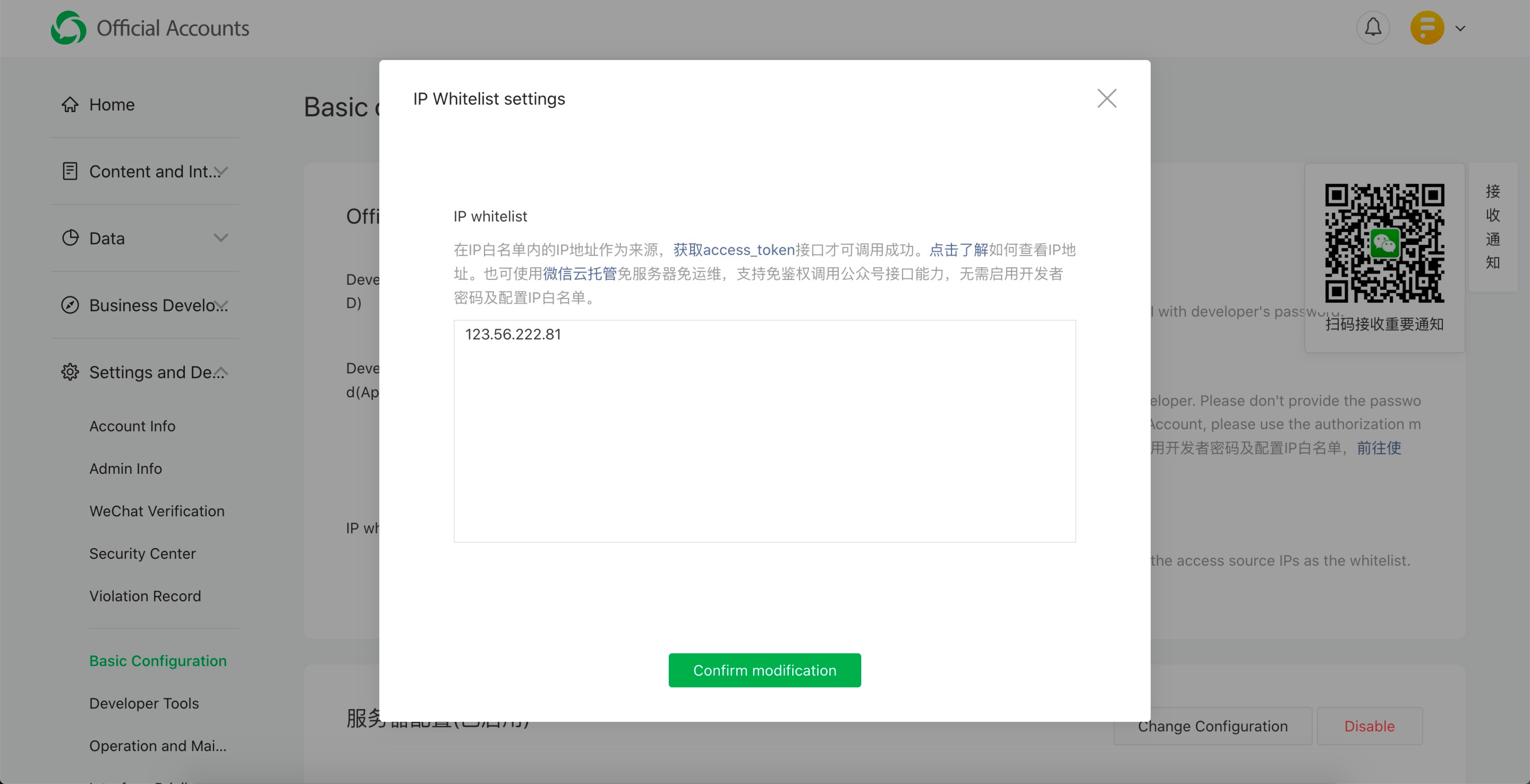
- Click Configuration (or View), add 123.56.222.81 to IP whitelist and click Confirm modification to save the modification.
Configure WeChat from OpenCUI
On OpenCUI platform, go to service component io.opencui.channel:
- Click Import button on the second topbar.
- Select the chatbot you want to configure WeChat channel and Save.
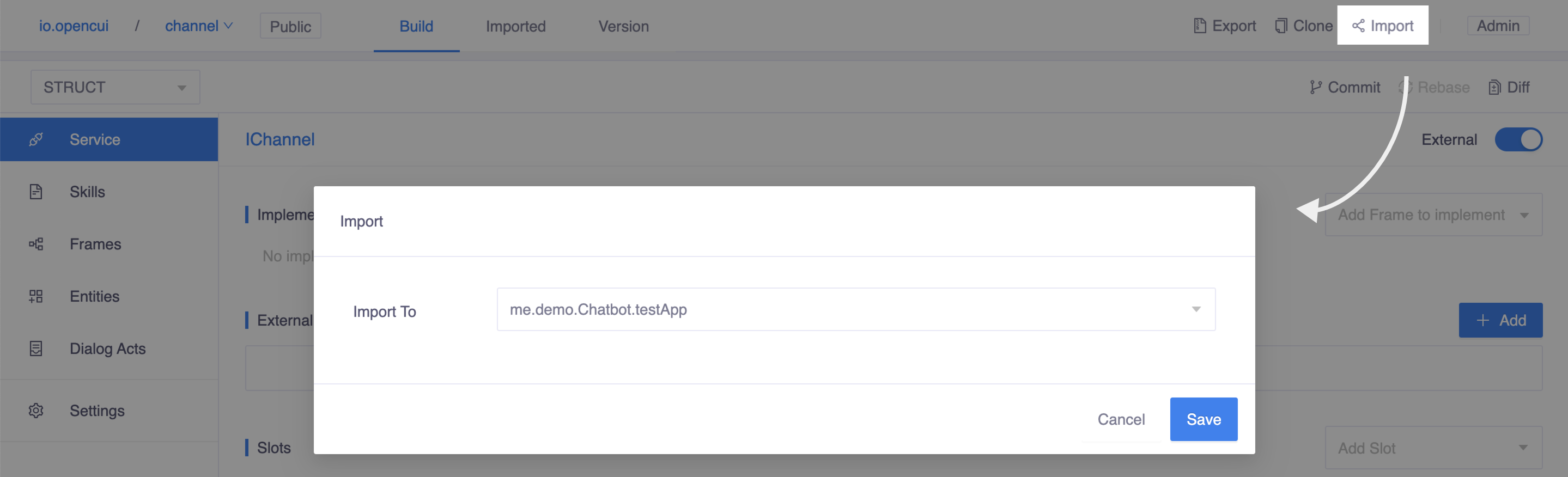
Once you have done, switch to your chatbot to wire WeChat channel:
- On STRUCT level, head to Settings page, in the Integrations tab, select the service you just import. In this case, please select io.opencui.channel.IChannel.
- A configuration dialog opens, at Service Provider field, select io.opencui.wechatOfficialAccount to wiring WeChat channel.
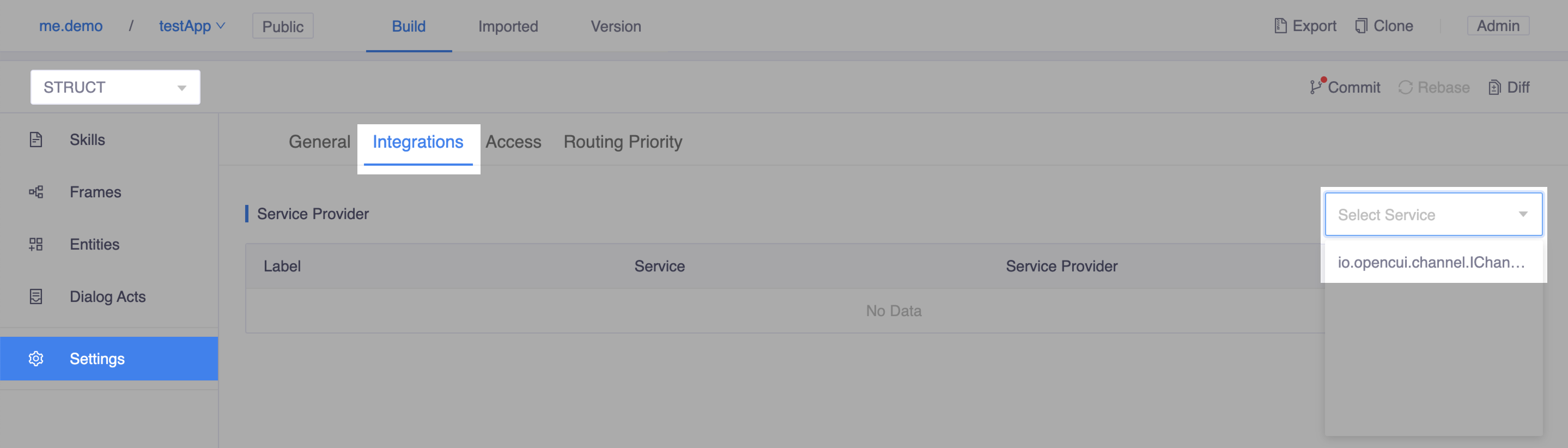 Select service io.opencui.channel.IChannel
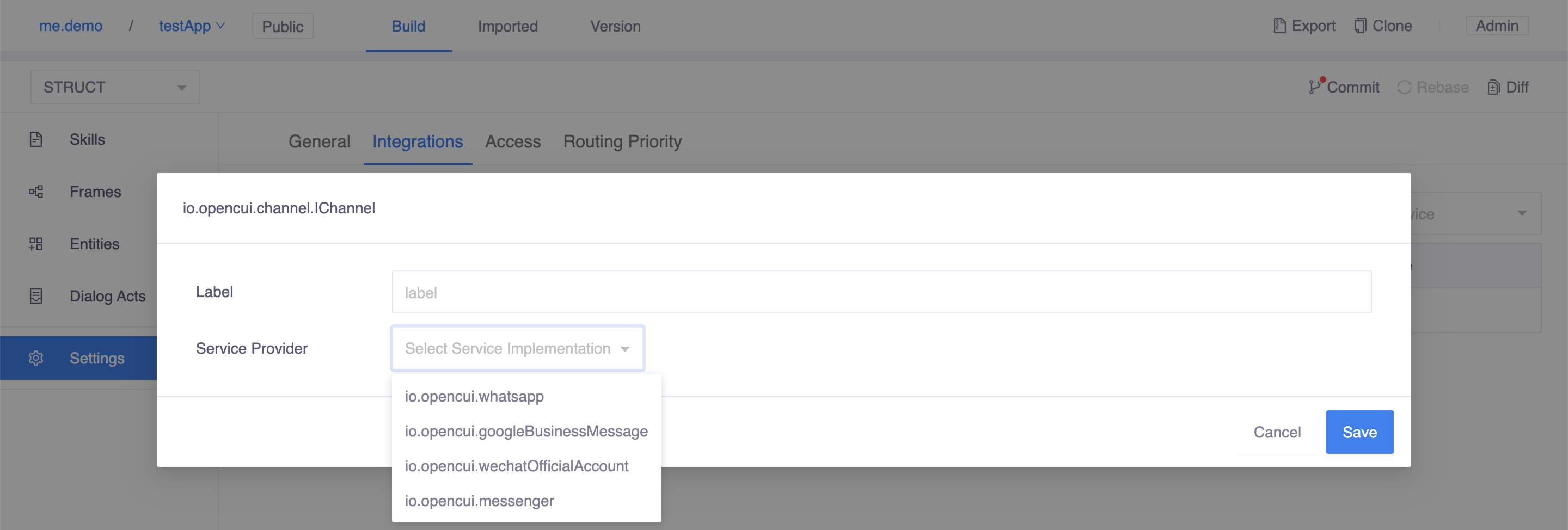 Wire WeChat channel
Continue inside the dialog, configure WeChat integration as following:
- Label: Enter channel label, should be unique.
- App ID: Paste the developer ID you copied during the WeChat Official Account setup above.
- App Secret: Paste the developer password you copied during the WeChat Official Account setup above.
- Token: Enter any token you desire. 📋 Copy this value. This will be used to configure the WhatsApp Webhook.
- Payment: Whether to use WeChat Pay.
- Locale: Select locale which determines the default language used by your bot.
- Callback URL: 📋 Copy this value after setting the label and locale. This will be used to configure the WeChat Server Configuration.
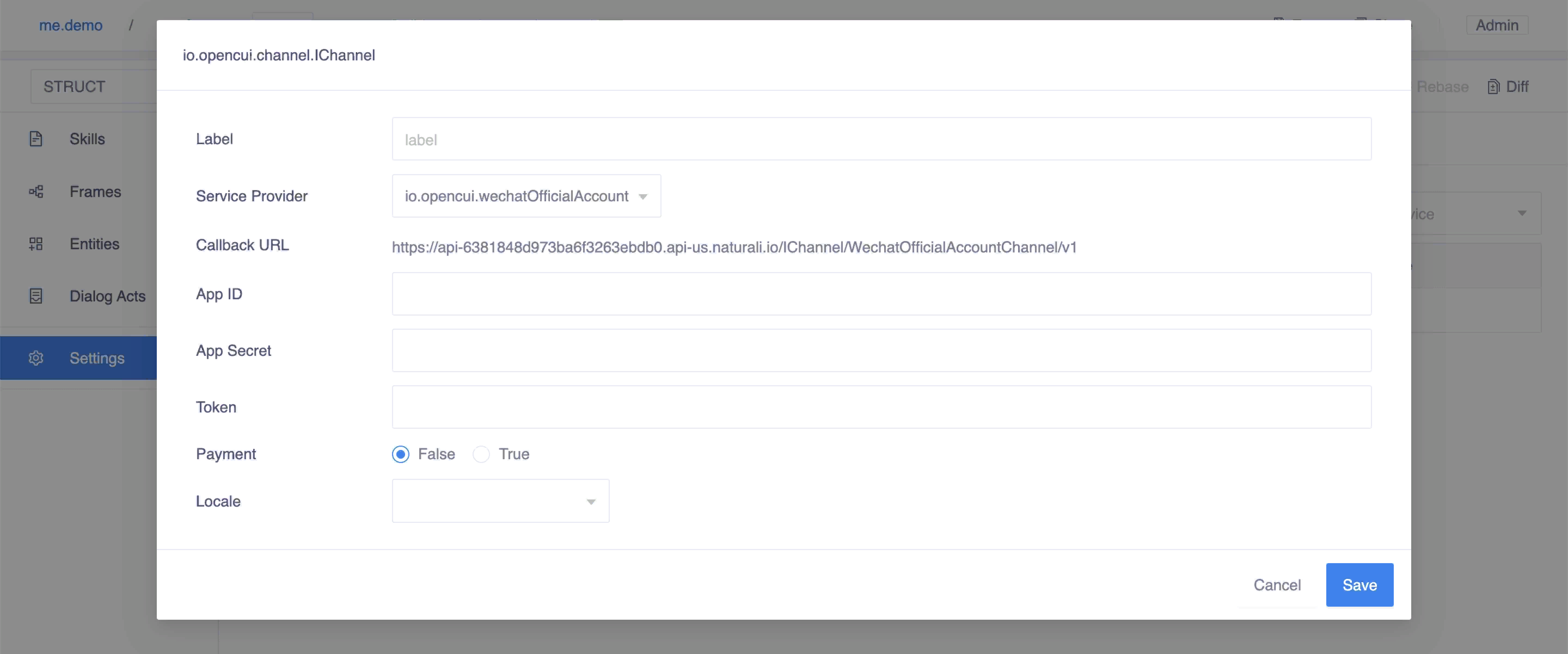
Before you go to next step, don't forget to merge your changes into master and deploy your chatbot.
Finish WeChat Official Account setup
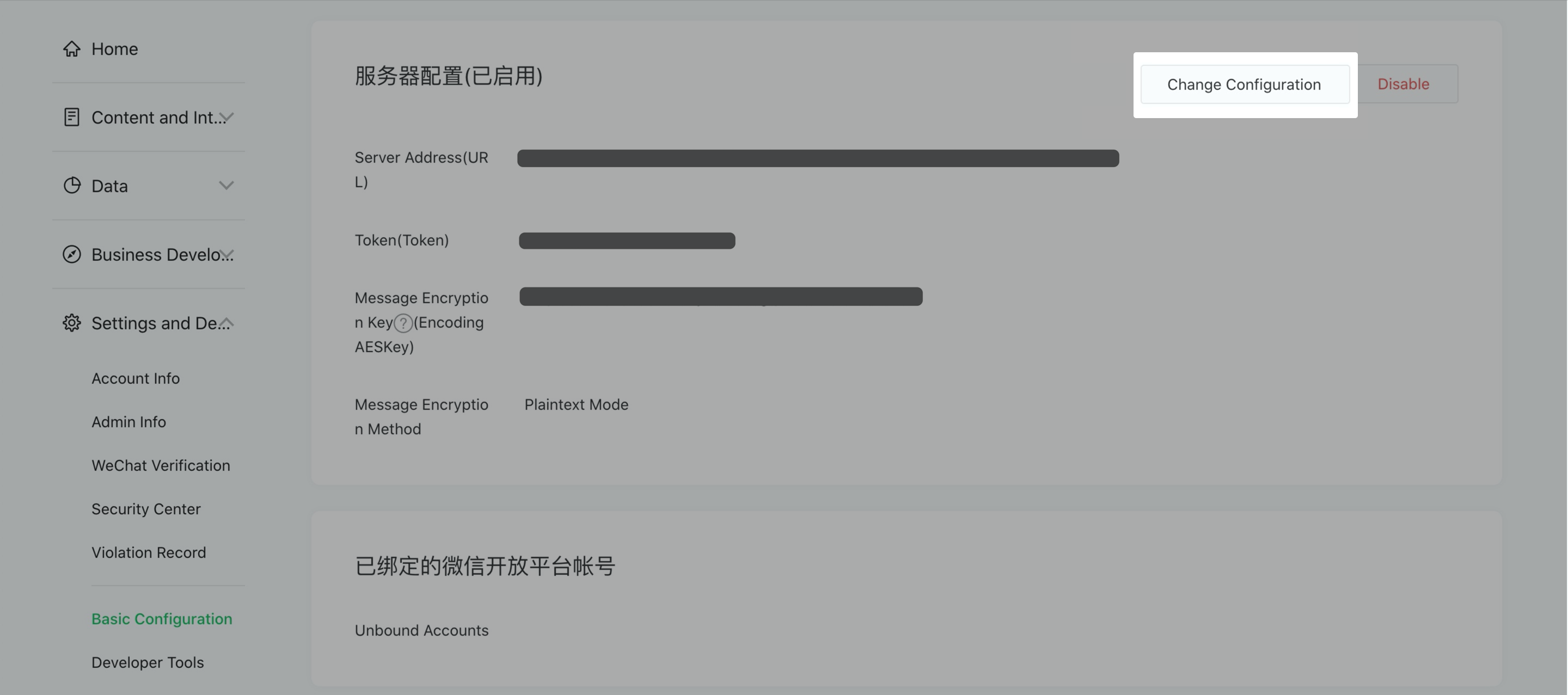
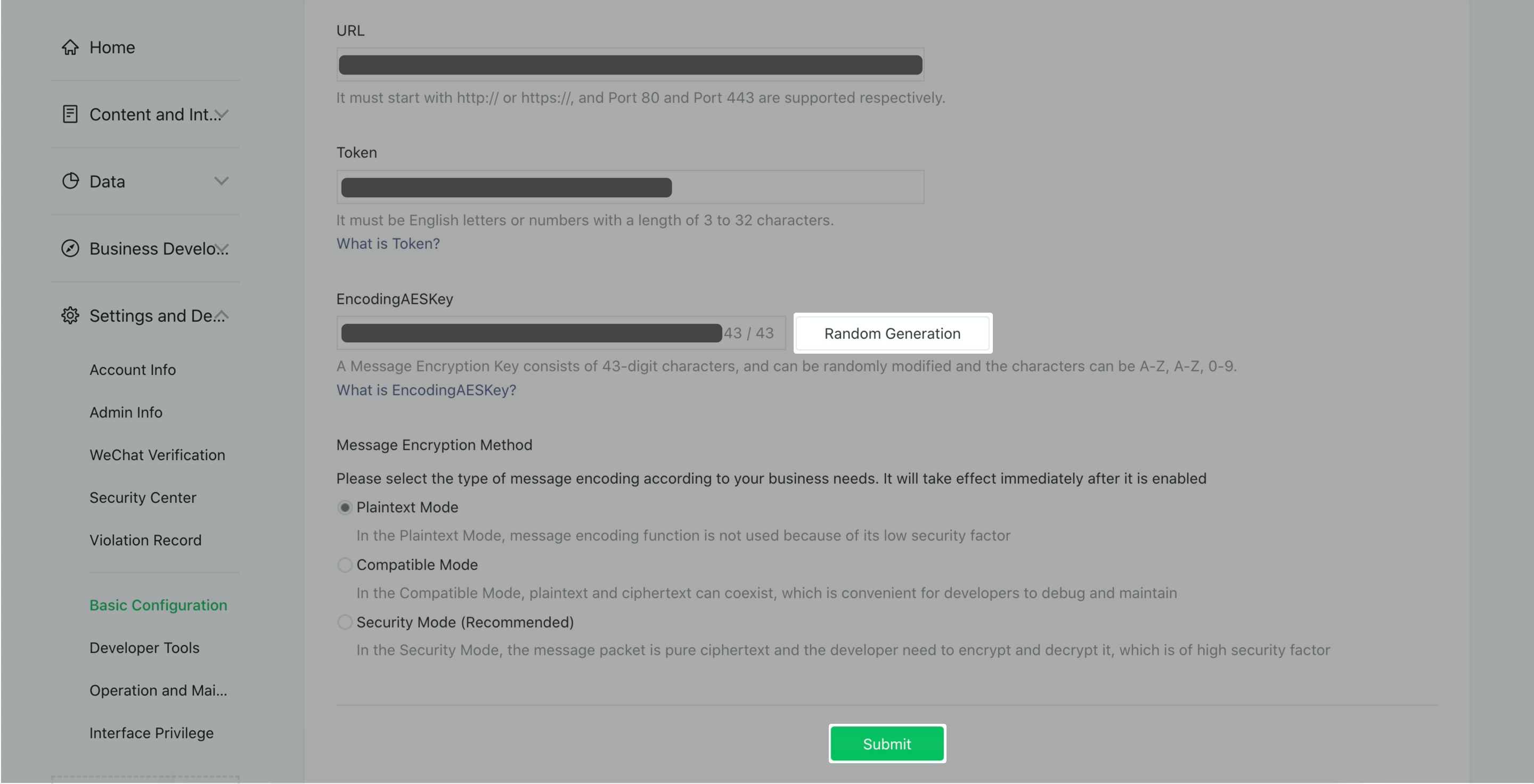
- Back to WeChat Official Account Platform, In the Server Configuration (服务器配置) field, click Change Configuration. Paste Callback URL and Token you copied.
- Click Random Generation to generate EncodingAESKey and click Submit.
Test your chatbot
Once you deploy successfully, you can try to send messages to your WeChat Official Account to test your chatbot now. If you get a response, you have fully set up your app for receiving messages! 🎉