
Google Sheets
Overview
Google Sheets is a web-based application that enables users to create, update and modify spreadsheets and share the data online in real time.
Google Sheets provider allow you to use Google Sheets as backend, which the actual data can be managed by your operation team in online spreadsheet collaboratively. Through Google Sheets provider, you can query data from your spreadsheet using the Query Language and update data with the help of low level functions in io.opencui.provider.GoogleSheetsConnection.
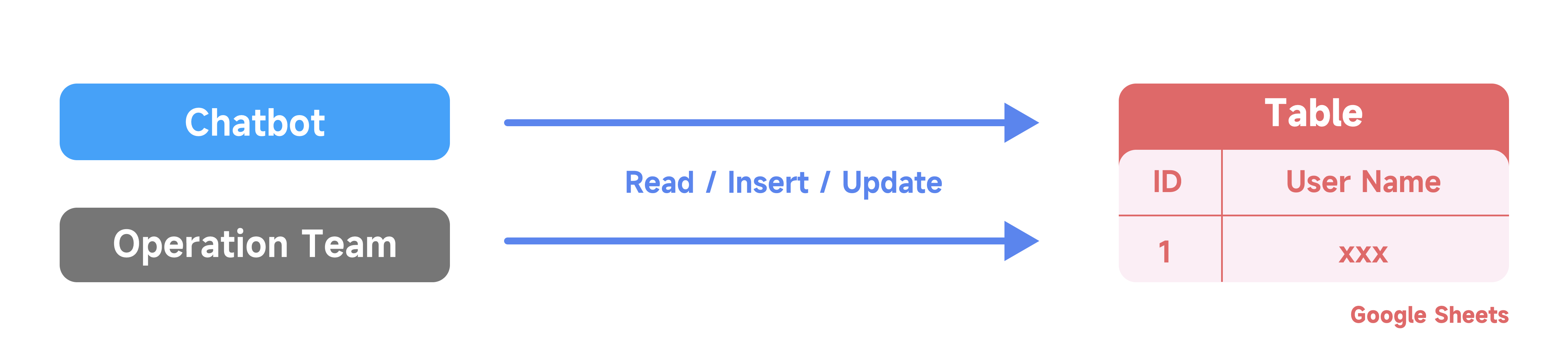 Operations on OpenCUI and Google Sheets
Note
Before you start, make sure you have created a spreadsheet.
Build connection
To begin with, you need to build a connection between Google Sheets and the provider so that the provider gets access to your spreadsheet. To build the connection, get your spreadsheet Id and a service account credential then fill out the following form.

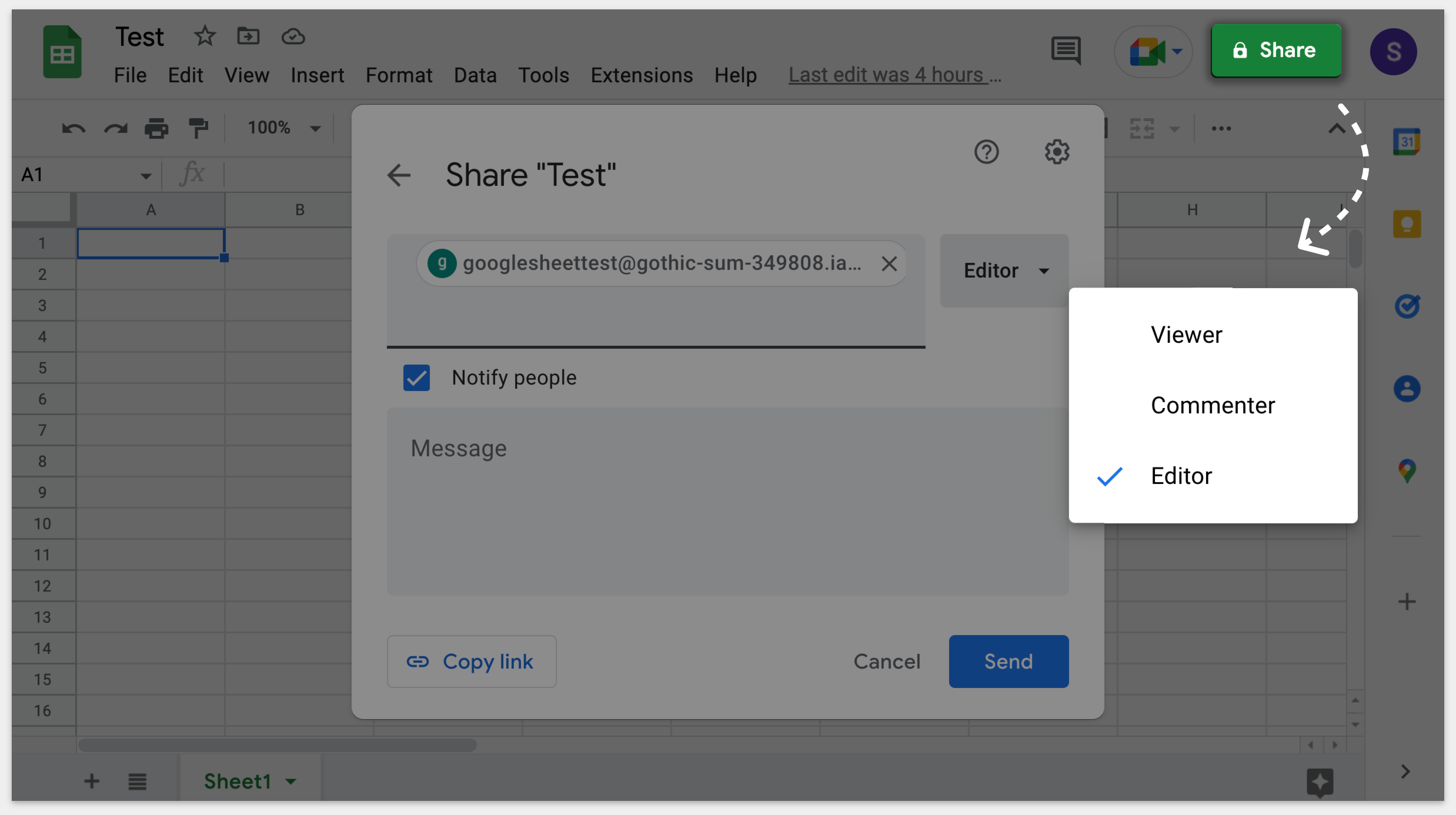
Once you create a service account, you need to give this account permission to view or edit your spreadsheet in three steps:
- Copy the email of your service account.
- Go to your spreadsheet. At the top-right, click Share.
- Paste the email you copied and give the right permission to this service account. For example, if you don't need to update business data in your spreadsheet, set the service account as a Viewer, otherwise, set it as an Editor.
Implement functions
Before you start to implement functions, read implementation first.
Types conversion
- When you call the provider-dependent function, use the function called toQueryString to convert parameters to the right format.
- When the provider-dependent function returns a set of values in the Google Sheets data type, we put those values in the return frame you defined, so you can display or use these values in the OpenCUI environment. When returning values, be sure to follow these rules.
- The types of slots in the the frame should be compatible with the types of return columns in the same index. For example, if the types of slots in the frame are [kotlin.Int, kotlin.String], the SQL data types of return columns should be [bigint, text] instead of [text, bigint].
- The labels of slots in the the frame should be the same as the names of return columns in the same index. For example, if the labels of slots in a frame are [id, name], the names of return columns should be [id, name] as well.
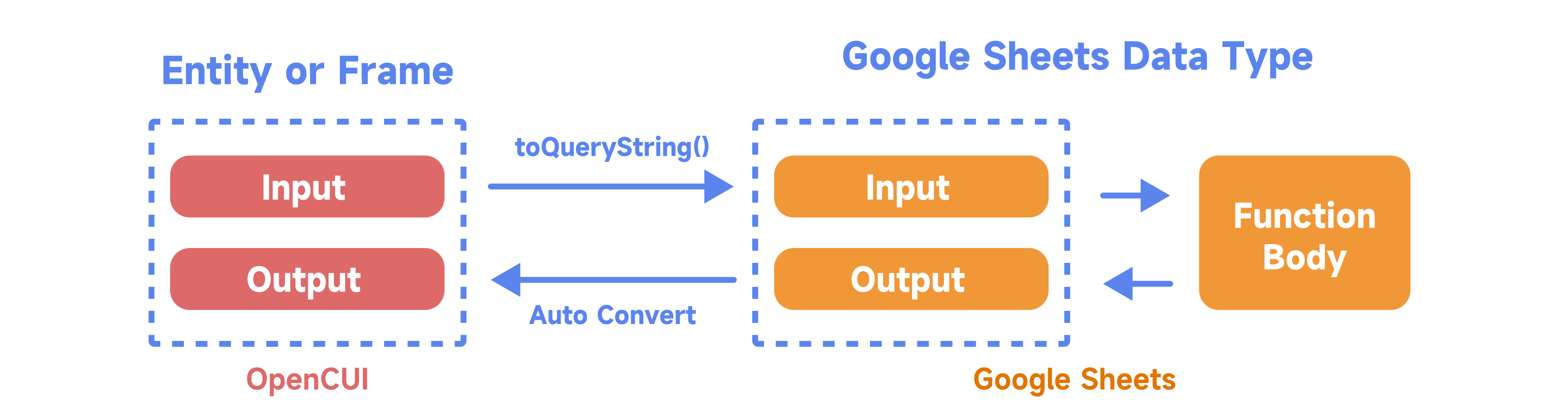 Type Conversion Between OpenCUI and Google Sheets
- Here is the conversion between entities and Google Sheets data types:
| Entity | Google Sheets Data Type |
|---|---|
| kotlin.Int / kotlin.Float | number |
| Customized entity (Builder-created Entity) / kotlin.String | string |
| kotlin.Boolean | boolean |
| java.time.LocalDate / java.time.YearMonth | date |
| java.time.LocalTime | timeofday |
| java.time.LocalDateTime | datetime |
Provider dependent functions
To get your business data from a spreadsheet, you can write a query in provider-dependent functions using the Query Language. A provider-dependent function implementation consists of Function Meta and Query.
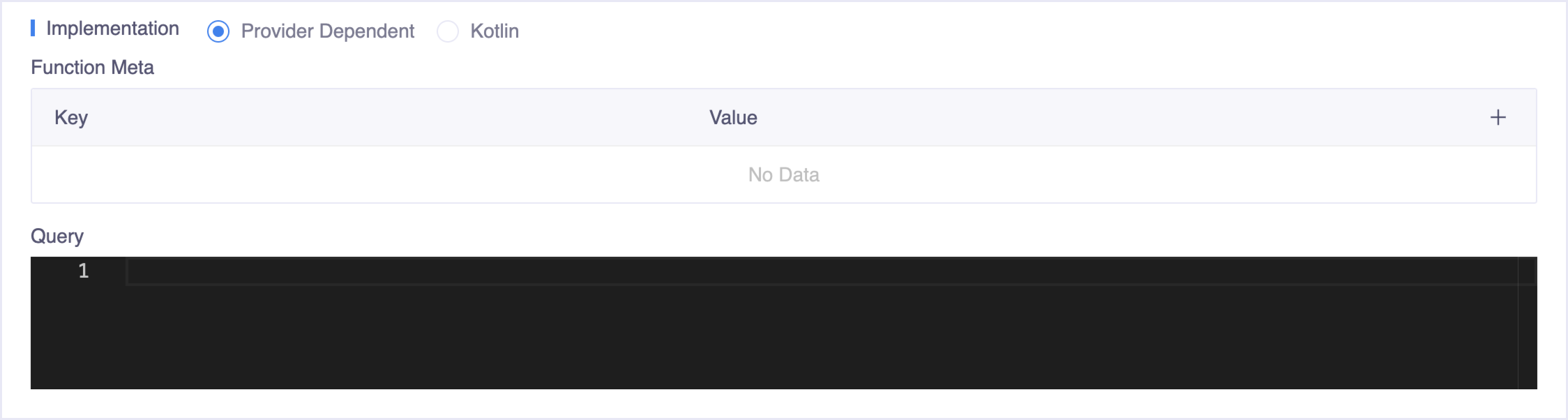
Function Meta is used to define optional parameters that are needed in your query. The key means the parameter's name and the value is the parameter's value.
- The keys you can choose are range, headers, gid and sheet. To learn what each of the parameters means, check out Creating a Chart from a Separate Spreadsheet.
- For example, because there is no from clause in Google Sheets, if you want to select data from a sheet that is not the first sheet, you need to specify which sheet to select from. You can use gid to link to the sheet's ID, or you can use sheet to link to the sheet's name.
Query is where you write a query using Query Language. Wrapping Kotlin expressions in
${}, you can reference input parameters in the provider-dependent function or return values from other functions.- When you reference values using Kotlin expressions,❗make sure you use
connection.toQueryString(X)to convert valueXto the right format. - For example, suppose you want to get a user's name by their ID. The user's name is stored in column B while ID in column A. If the input parameter is userId, you may write a query like this:
sqlselect B where A = ${connection.toQueryString(userId!!)}- When you reference values using Kotlin expressions,❗make sure you use
Kotlin functions
To update and append your business, OpenCUI provides external functions: update and append. You can call these functions using connection.update and connection.append in Kotlin functions. Check out the definitions of these functions in io.opencui.provider.GoogleSheetsConnection. To learn the source of the function, see spreadsheets.values.update and spreadsheets.values.append.
- The input parameters are the same in these two functions.
| Name | Type | Reference |
|---|---|---|
| range | kotlin.String | Use range to select specific ranges. To learn how to define it, see A1 notation. |
| values | kotlin.Any[] | Use values to add/append a row of values by putting values in a list, likelistOf(a, b, c). |
| valueInputOption | kotlin.String | Use valueInputOption to determine how input data should be interpreted. To know what options you should choose, see ValueInputOption. |
- The return types are UpdateValuesResponse and AppendValuesResponse. You can use the methods in these classes to check if the response meets expectations. For example, if you expect to update 3 values, use
UpdateValuesResponse.getUpdatedCells == 3to check.
Suppose you want to update a user's delivery address and phone number in the range of "'UserInfo'!B5:C5". If the input parameters are address and phoneNumber, the Kotlin function will be like this:
var values = listOf(address, phoneNumber)
var result = connection!!.update("'UserInfo'!B2", values, "RAW")
// if the update is successful, return true, otherwise, return false
return result!!.getUpdatedCells() == 2